
A visual timer represents passing time with a shape, color, picture, or progress display. For children who do not yet understand what "five more minutes" feels like, it turns an abstract promise into something they can watch.
Free browser tool
Start a free visual timer for kids
Choose a quick preset or set your own duration. The visual countdown runs in your browser with optional sound, fullscreen mode, no account, and no ads.

Why a visual timer helps at all
This is not a preference thing. Children's sense of duration keeps changing well into primary school: estimates get more accurate and less variable with age, and only settle into something close to adult precision somewhere around eight to ten years old. Before that, "five minutes" is a phrase, not a felt amount of time.
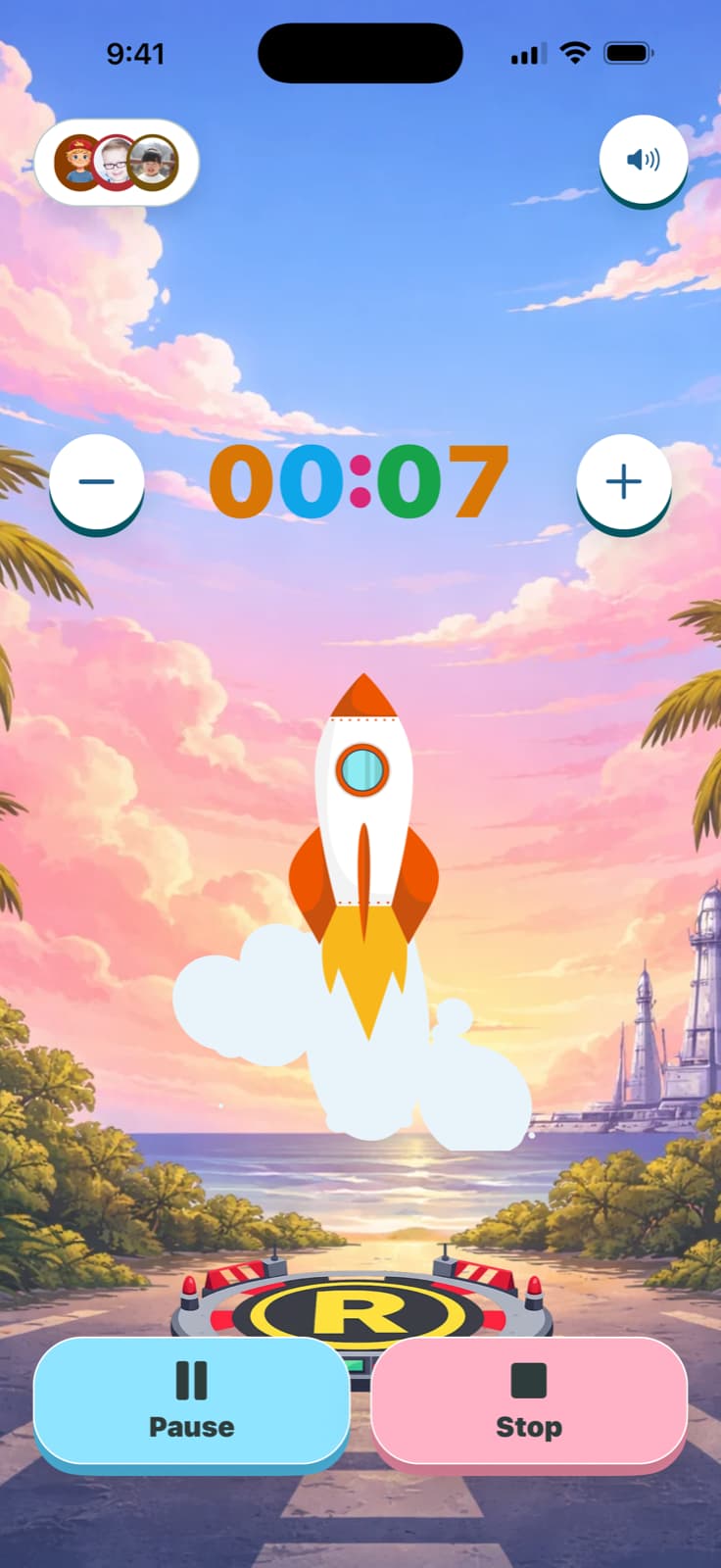
A visual timer replaces the phrase with a shape that shrinks. Your child does not need to calibrate an internal clock they have not finished developing. They just need to watch the shape.
Start with a low-pressure moment
Introduce the timer during an activity that already goes fairly smoothly. Try five minutes of drawing, a short reading period, or waiting for a snack. Explain what the timer means before starting.
Try saying
We can watch this together. When it finishes, drawing time is done.
Starting in a neutral moment helps the timer become a predictable helper instead of a signal that something enjoyable is always about to be taken away.
Choose a duration your child can succeed with
Begin with a short, realistic interval. A timer should clarify an expectation, not create a race your child cannot finish. If a task usually takes ten minutes, setting three minutes is likely to add pressure instead of understanding.
Give one clear instruction
Connect the timer to one visible outcome: put toys in the basket, get dressed, read together, or work on one homework section. Avoid timing an entire complicated routine before the child knows how the visual countdown works.
How to do this in TickTod
- Choose the child profile so the timer feels familiar.
- Select a duration and name the moment clearly.
- Pick a visual style, sound, or reduced-motion option that fits your family.
- Start the timer and point out the visual progress once, then let it do the reminding.
- When it finishes, follow through calmly and celebrate the completed step.
What if the timer causes frustration?
Pause and shorten the next attempt. Let your child help choose the color, sound, or duration. Keep your language neutral and avoid restarting the timer repeatedly after it ends. Consistency matters more than making every attempt perfect.
If you want to try a countdown before installing anything, the free visual timer for kids runs in your browser.
Make time visible with TickTod
Use colorful countdowns, saved presets, personal profiles, and gentle finish celebrations for everyday family moments.
 Get TickTod on the App Store